
API key step by step
This is the extended version of the Getting Started API setup guide. It covers every screen and option in detail.
Prerequisites
- A Google account (Gmail or Google Workspace)
- Access to the Google Cloud Console
- A credit card for billing verification (you will not be charged under normal usage)
Detailed walkthrough
1. Enable the APIs
Use this direct link to enable all four required APIs at once:
→ Enable Maps JavaScript, Geocoding, Directions & Places APIs
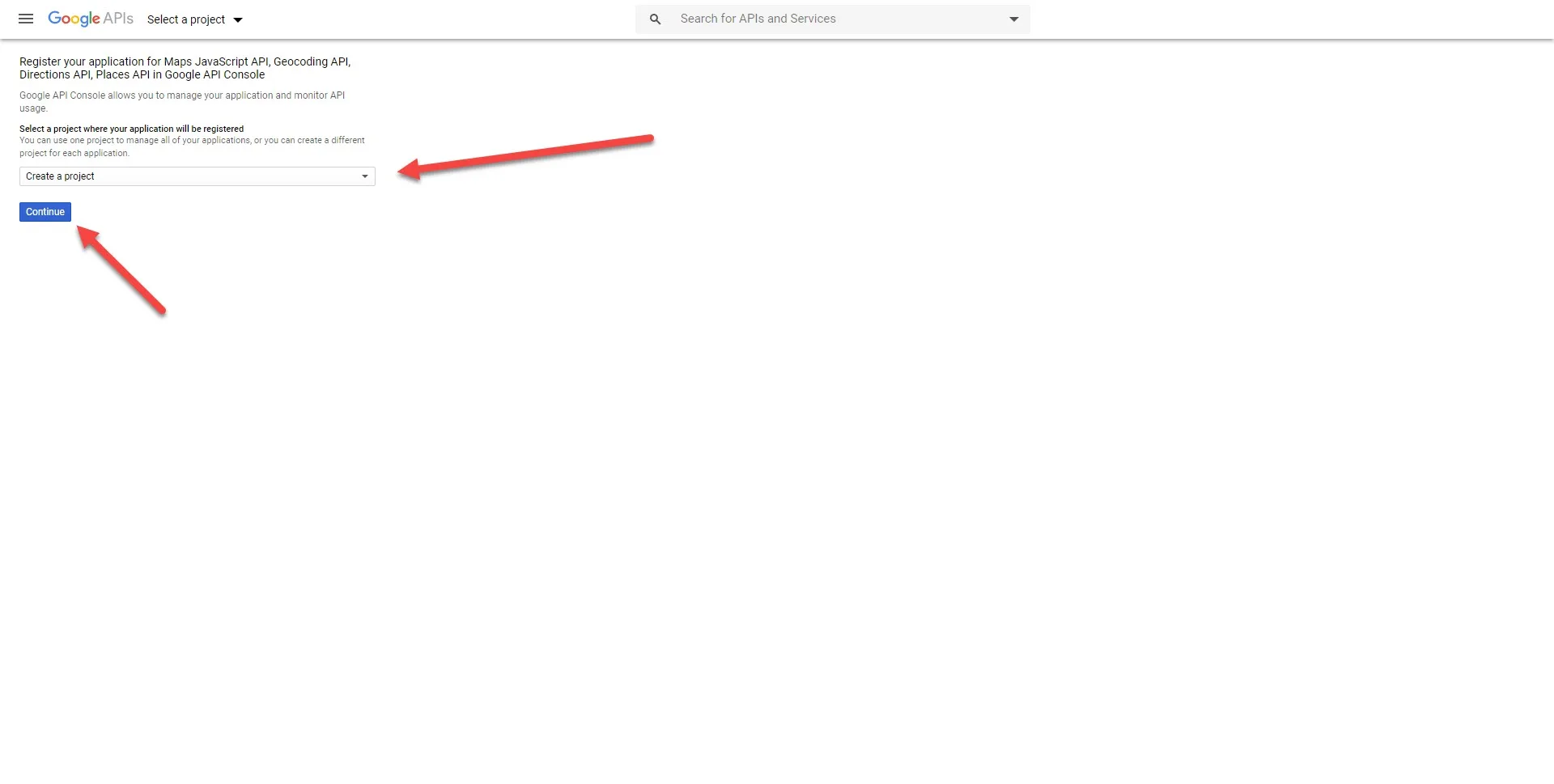
2. Create your API key
After enabling the APIs, navigate to APIs & Services → Credentials. Click Create Credentials → API Key. Google generates a new key.
3. Restrict the key
Click on the key name to edit it.
Application restrictions: Select HTTP referrers and add your domain patterns:
https://yourdomain.com/*
https://www.yourdomain.com/*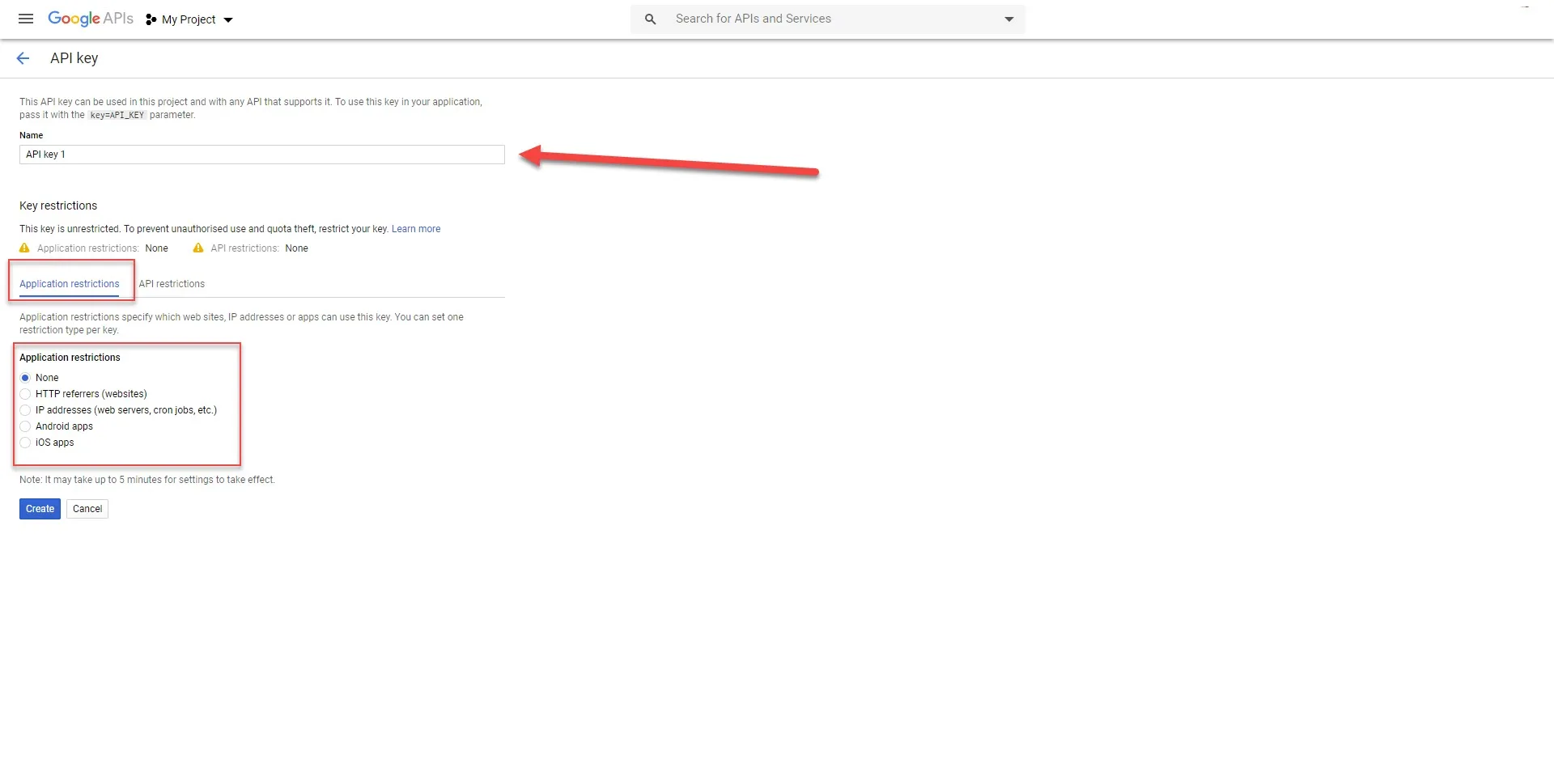
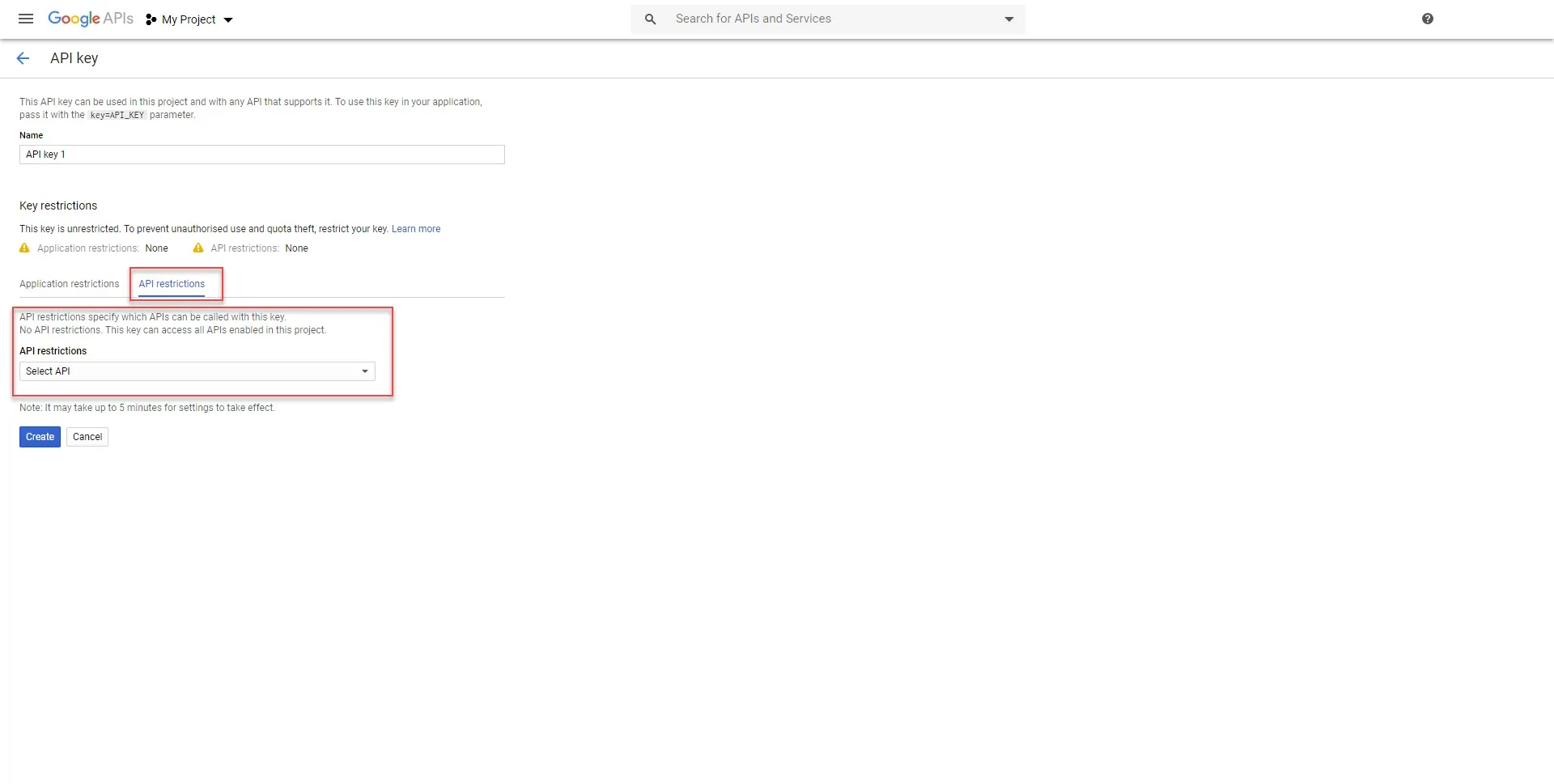
API restrictions: Select Restrict key and choose the four APIs.
4. Enable billing
Navigate to Billing and link a billing account.
5. Paste in WordPress
Go to WP Google Street View → Settings and paste the key.
Video tutorials

