
Synchronized view Pro
The synchronized view combines a Google Maps panel and a Google Street View panel in a single visual block. Instead of forcing visitors to choose between orientation and immersion, it gives them both at once.
That simple change makes the feature much more useful than a standard embed in contexts where position matters. A map tells the visitor where something is in relation to roads, neighborhoods, and surrounding businesses. Street View shows what the place actually feels like at eye level. When both panels remain connected, people can move from overview to detail without losing context.
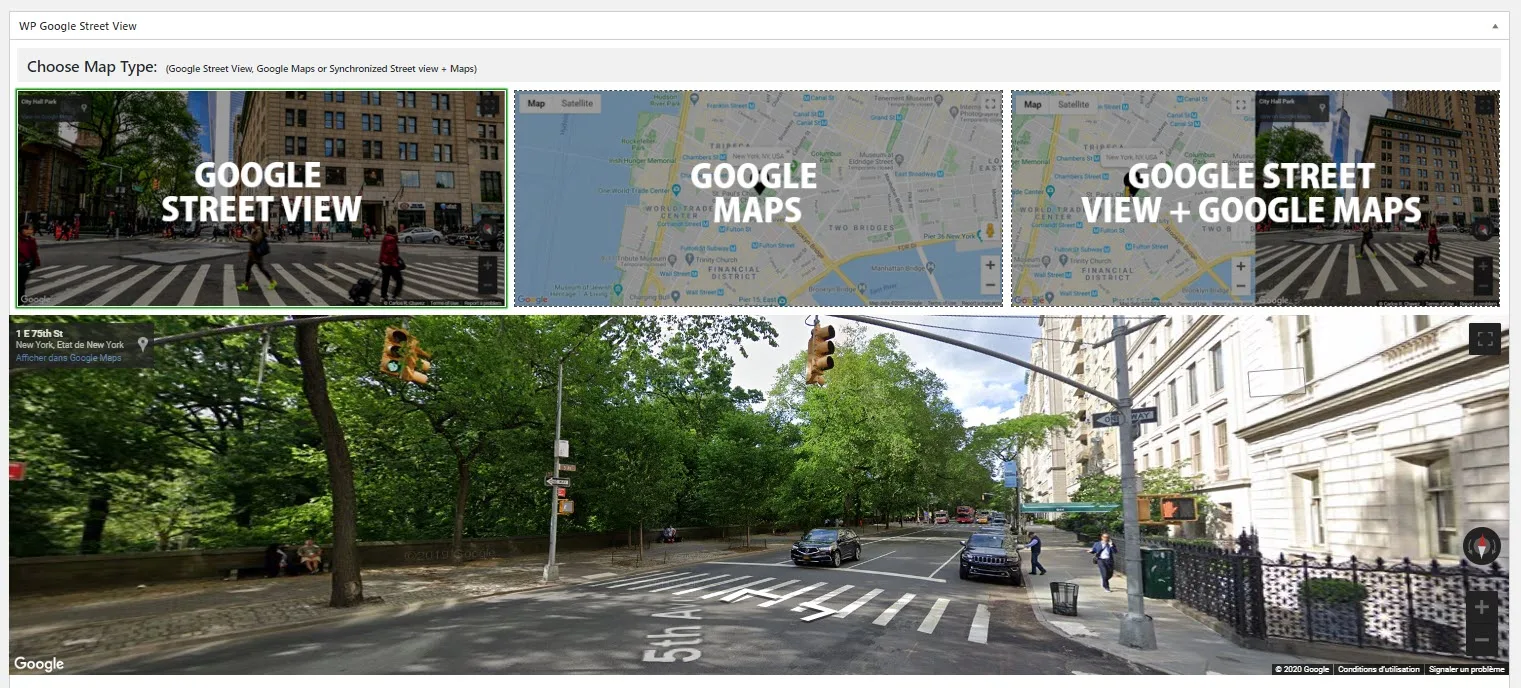
What synchronized view really solves
A classic Street View embed is great for realism, but it can leave the user slightly disoriented. They can look around, but they may not understand the broader geography. A map solves that, but on its own it does not show frontage, signage, traffic flow, or entrance visibility.
The synchronized view solves this by keeping the two perspectives aligned:
- click on the map and Street View jumps to the same area;
- move inside Street View and the map marker follows;
- keep the page layout stable while visitors explore both macro and micro context.
This reduces friction on pages where “where exactly is this?” and “what does this place look like?” are equally important.
How it works technically
The feature relies on native Google Maps Platform behavior. WP Google Street View creates a Map instance and a StreetViewPanorama instance, then connects them so both views remain synchronized.
In practical terms, that means the plugin is not trying to fake synchronization with a brittle front-end workaround. It is using the relationship Google already exposes between Maps and Street View. That matters because it keeps the experience predictable and easier to maintain.
For site owners, the key point is this: the feature feels simple on the page, but it uses the same reliable mapping layer that powers normal Google Maps embeds.
Why this layout is valuable for visitors
The synchronized layout improves three things at the same time.
1. Orientation
Visitors can understand the wider area without leaving the page.
2. Trust
A street-level preview often reduces uncertainty, especially when someone wants to check frontage, access, parking, signage, or surrounding density.
3. Decision speed
When users no longer need to open another tab, switch to Google Maps manually, and reconstruct the location themselves, they can evaluate the page faster.
This is especially helpful on business sites where hesitation often comes from uncertainty about the place, not from uncertainty about the offer.
Layout behavior and responsive usage
On desktop, the standard split is side by side. That gives visitors a direct comparison between the map layer and the street-level view.
On smaller screens, stacking the panels vertically is usually the more practical behavior. The map stays readable, Street View remains usable, and the interface avoids becoming too cramped to interact with.
That responsive behavior is important because many location-checking sessions happen on mobile. Someone looking for a destination, hotel, office, store, or property is often already on the move.
Which settings still matter in synchronized mode
One of the strengths of the synchronized view is that it does not become an isolated mode. It inherits the logic of the underlying features.
You still benefit from the options already available in:
So the synchronized view is not just “two panels on screen.” It is a composite feature that becomes more useful when you configure the surrounding layers well.
For example:
- map styles help the map panel match the site or reduce visual noise;
- markers clarify the exact location on the map side;
- an info box adds context without forcing the visitor to leave the map;
- Street View direction and pitch make the initial perspective more intentional.
Best use cases
Real estate
Real-estate pages benefit immediately because buyers and renters often want to inspect both the immediate street environment and the larger neighborhood.
Hospitality and tourism
Hotels, accommodations, and tourism pages can show not just a building, but its place in the local fabric. This is often more persuasive than a plain static map.
Offices and clinics
Professional practices, campuses, and clinics can reduce anxiety by showing visitors exactly what the arrival experience looks like.
Logistics and pickup locations
When exact access matters, synchronized view can reduce confusion around entrances, loading areas, or street-side landmarks.
When to use it instead of a single Street View embed
Use synchronized view when the visitor needs both:
- immersive preview;
- geographic context.
If the page is only trying to give a quick visual impression, a standard Street View panel may be enough.
If the page is more about navigation than immersion, a standard Google Maps embed may be enough.
But when a page needs both, the synchronized layout is usually the better presentation layer.
Practical page design tips
To make this feature work well on a real page:
- place it near the main location explanation, not too far below the fold;
- keep nearby copy concise so the map pair remains visually dominant;
- use a marker and, where relevant, an Info Box;
- avoid overloading the same page with too many competing visual modules;
- on long pages, give visitors a clear heading explaining why the dual view is useful.
Free versus Pro behavior
The synchronized layout is part of the Pro scope. In the free version, the selection acts as an upgrade prompt rather than rendering the full synchronized experience.
That distinction matters because many commercial pages want this exact dual-context presentation. For sites that depend on location clarity, it is one of the upgrades most directly tied to user experience rather than just admin convenience.
Related features
If synchronized view is relevant to your project, the next pages to read are: